
How-to · macOS
How to Recover a Forgotten MacBook Password
Locked out of your own MacBook? You usually do not need to wipe it - here are the safe, Apple-approved ways to reset a forgotten login password, in the order we use them at the bench.
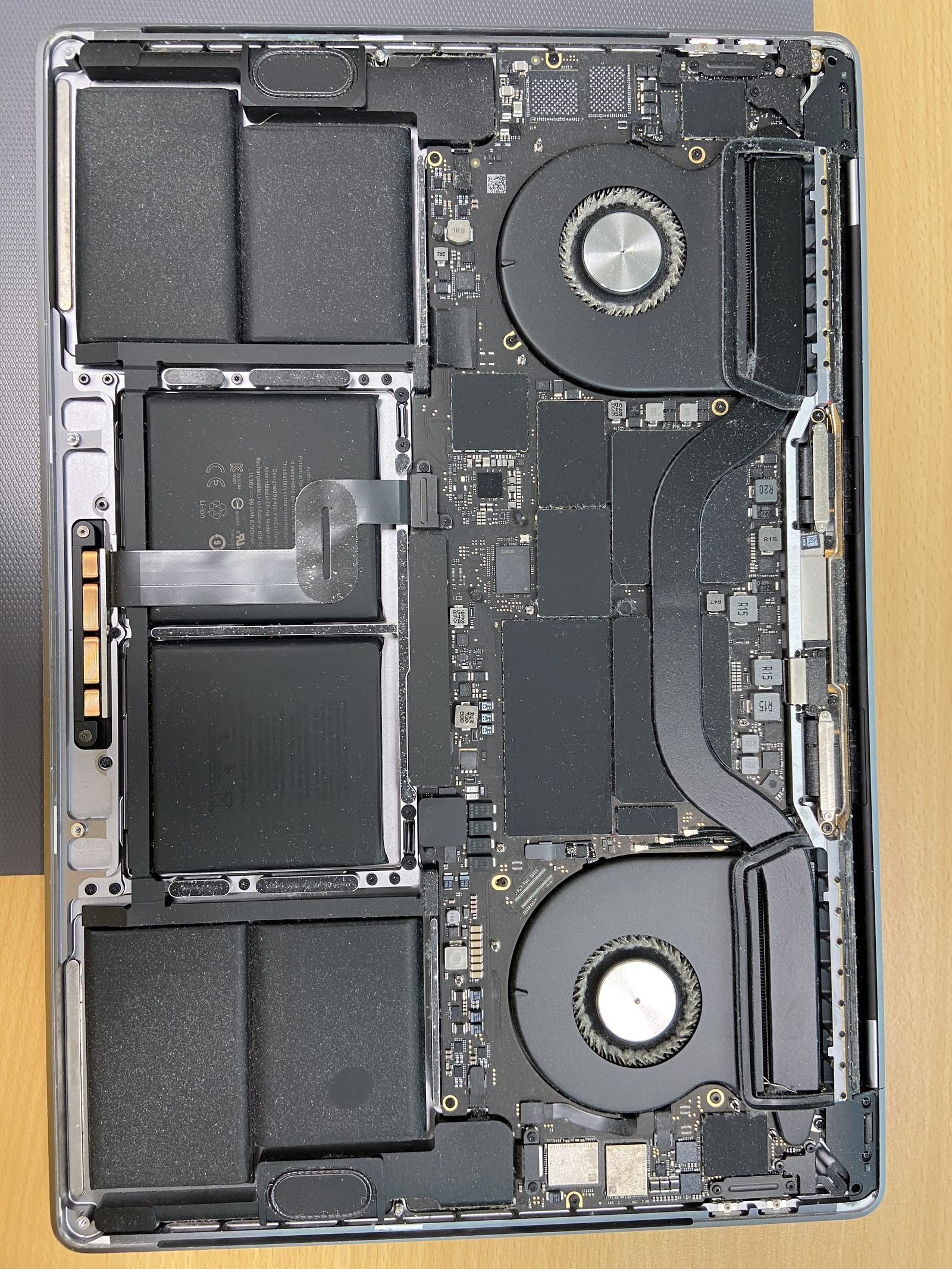
How to Recover a Forgotten MacBook Password?
Quick answer
First, confirm it is your own Mac
Everything below is for recovering the password on a MacBook that you own. These methods deliberately do not bypass Apple's Activation Lock or an iCloud lock - that protection is what keeps a stolen MacBook useless. If the Mac is second-hand or you cannot sign in to the Apple ID it is tied to, you will need proof of ownership (original receipt or invoice) before anyone, including Apple or us, can help. See the iCloud and Activation Lock note further down.
This guide is specifically about a forgotten login password. If you just want to change passwords you already know - including the keychain or a firmware password - read how do I reset passwords on my MacBook instead, which covers that broader ground.
Step 1 - Use the password hint (fastest, zero side-effects)
Before resetting anything, give the hint a chance. At the login screen, type a wrong password and press Return three times. After the third failed attempt macOS shows the hint you set when the account was created. Often that is enough to jog your memory. If you remember the password this way, you avoid the keychain complications a reset causes - by far the best outcome.
Step 2 - Reset using your Apple ID (if FileVault or Apple ID is linked)
If your account is linked to an Apple ID, or FileVault disk encryption is turned on, the login screen offers an Apple ID route. After a few failed attempts you will see a small question mark, an arrow, or a message like "Reset it using your Apple ID". Click it and:
- Sign in with your Apple ID and its password (you may need to approve a two-factor code on your iPhone)
- Choose the user account you are resetting
- Set a brand-new login password and a fresh hint
- Restart - you can log in immediately with the new password
This is the cleanest reset, but it does still lock your old login keychain (see the keychain section). It only appears if the Apple ID is actually tied to that user or to FileVault.
Step 3 - Reset via macOS Recovery (the resetpassword utility)
No Apple ID prompt, or no internet? macOS Recovery has a built-in Reset Password assistant that works offline. Shut the MacBook down fully first, then boot into Recovery:
- Apple Silicon (M1/M2/M3/M4): press and hold the power button until "Loading startup options" appears, then click Options → Continue
- Intel: turn on and immediately hold Command + R until the Apple logo or spinning globe appears
When the macOS Utilities window appears, go to the menu bar and choose Utilities → Terminal. Type resetpassword (one word, all lowercase) and press Return. The Reset Password Assistant window opens. Pick your startup disk, select the user account, enter a new password twice, add a hint, and click Save. Quit and restart. If FileVault is on, Recovery will ask you to unlock the disk first - use your Apple ID or recovery key.
Step 4 - Use your FileVault recovery key
FileVault encrypts the whole disk, and when you switched it on macOS gave you a 24-character recovery key (or offered to store it with your Apple ID / iCloud). If the Apple ID route is not available, click the ? at login and choose to reset using the recovery key, then type it in exactly. You will then be allowed to set a new login password.
If you never saved that key and cannot reset another way, the encrypted data is, by design, unrecoverable - that is the entire point of FileVault. In that situation, get in touch before doing anything drastic; our MacBook data recovery service can assess what, if anything, is salvageable.
Step 5 - Reset from a second admin account
If the MacBook has a second administrator account that you can still log into, you do not need Recovery mode at all. Log in to that admin account, open System Settings → Users & Groups, select the locked-out account, and reset its password from there. The same keychain caveat applies to the account whose password you changed.
Step 6 - Create a new user via Recovery (only if all else fails)
If the original account genuinely cannot be recovered, the Reset Password Assistant in Recovery can walk you through creating a new administrator account. You log in fresh, and your old account's files remain on the disk inside its home folder, so you can copy them across. This is a workaround for access, not a fix for the original password - use it only when Steps 1-5 are exhausted.
Avoid "Reinstall macOS" or erasing the disk to get past a password - it deletes your data and is almost never necessary. If you do want a clean start after recovering access, our macOS reinstall service does it safely.
Important: what a password reset does to your keychain
This is the part people miss. macOS protects your saved Wi-Fi passwords, website logins, app passwords, and certificates in a login keychain that is itself encrypted with your old login password. When you remember your password (Step 1), the keychain is fine. When you reset it (Steps 2-6) without knowing the old one, macOS cannot decrypt the existing keychain, so it locks it.
- After a reset, macOS prompts you to Create New Keychain or update it
- If you create a new keychain, your old saved passwords are not lost - they sit in a locked file, recoverable later if you ever remember the old login password
- If you do remember the old password afterwards, open Keychain Access → Preferences → Reset My Default Keychain, or unlock the old "login" keychain in the sidebar with the old password
- iCloud Keychain items (passwords synced to your Apple ID) come back automatically once you are signed in - those are not affected
Bottom line: a reset login password gets you back in, but the old keychain stays locked until you can supply the old password. Save both for a while. For more on managing the keychain itself, see our broader password-reset guide.
iCloud lock and Activation Lock (proof of ownership)
A forgotten login password is not the same as an iCloud / Activation Lock. Activation Lock ties the Mac to an Apple ID via Find My, and it cannot - and should not - be bypassed without the account credentials. If you are blocked at an Apple ID sign-in or Activation Lock screen and you own the Mac, gather your original purchase receipt or invoice. With genuine proof of ownership we can help you start an Apple removal request, but no legitimate technician can simply "unlock" someone else's Mac. If you are unsure which lock you are facing, contact us and describe the exact screen you see.
Still stuck? We can recover it for you
If the resetpassword utility errors out, FileVault refuses your key, or you are not comfortable in Recovery mode, bring it in. We have been recovering MacBook access in Dubai since 2004, and a full diagnostic tells us whether it is a simple reset or something deeper. If anything looks data-sensitive we image the drive first via data recovery so nothing is lost. Free pickup, free diagnosis, and a 90-day warranty - see all MacBook services or message us on WhatsApp.
Frequently asked questions
- Almost always, yes. Start by triggering the password hint (three wrong guesses), then use 'Reset it using your Apple ID' at login, or boot into macOS Recovery and run the resetpassword utility. All of these reset the password while keeping your files. Only erasing the disk loses data, and that is rarely needed.
- Shut down, then boot into Recovery (hold the power button and pick Options on Apple Silicon, or hold Command + R on Intel). Choose Utilities → Terminal, type resetpassword, and press Return. The Reset Password Assistant lets you pick your disk and account and set a new password. If FileVault is on, you'll unlock the disk first with your Apple ID or recovery key.
- resetpassword is a hidden macOS tool you launch from Terminal inside Recovery mode. Typing it opens the graphical Reset Password Assistant, which sets a new login password for any local account on the disk. It only runs from Recovery, so a thief can't reach it on a FileVault-encrypted Mac without unlocking the disk first.
- Your login keychain was encrypted with your old password. When you reset the password without knowing the old one, macOS can't decrypt that keychain, so it locks it and creates a new empty one. The old passwords aren't deleted - if you ever recall the old password you can unlock the old 'login' keychain in Keychain Access. iCloud Keychain items return automatically once you're signed in.
- It's the 24-character backup key macOS generated when you turned on FileVault disk encryption. You either wrote it down or chose to store it with your Apple ID. At login, the ? icon offers to reset using this key. If you never saved it and can't reset another way, the encrypted data is unrecoverable by design.
- That option only appears if the account is linked to an Apple ID or FileVault is on. If it's missing, use macOS Recovery and the resetpassword utility instead, or log in from a second admin account and reset from System Settings → Users & Groups.
- That's Activation Lock, not a forgotten login password, and it can't be bypassed - that's what protects stolen Macs. If you genuinely own the Mac, bring your original purchase receipt or invoice and we can help you start an official Apple removal request. Without proof of ownership, no legitimate technician can remove it.
- Yes. We've recovered MacBook access in Dubai since 2004 with free diagnosis and a 90-day warranty. For anything data-sensitive we image the drive before touching it, so your files are protected. We only work on Macs you can prove you own.
Related on MacBook Repair Dubai
About the author
Usman is a senior macbook technician at MacBook Repair Dubai, Dubai's longest-running Apple-only repair workshop (since 2004). Personally signs the QC checklist on every job leaving the bench.