
How-to · macOS
How to Change Your MacBook's Name
Renaming your MacBook takes about 30 seconds and instantly updates AirDrop, Finder sharing, and your iCloud device list - here's the simple way, plus the Terminal trick for the technical hostname.
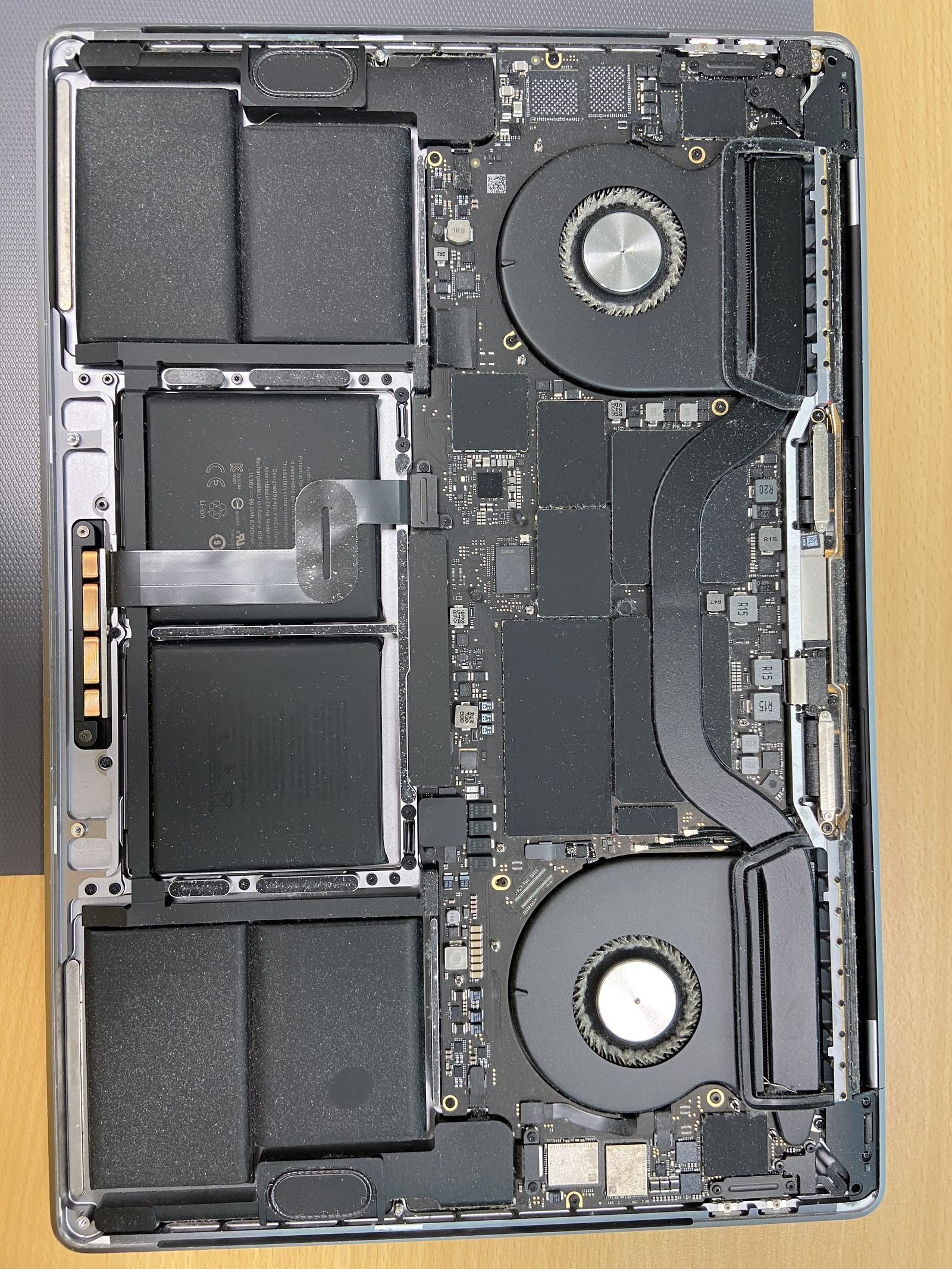
How to Change Your MacBook's Name?
Quick answer
The 30-second way - change the computer name
On any modern MacBook running macOS Ventura, Sonoma, Sequoia, or later, open the Apple menu in the top-left corner and choose System Settings → General → About. Click the Name field at the top, type whatever you like, and press Return. That's it - the change is instant, survives without a restart, and you can rename as many times as you want with no data loss.
On older Macs running macOS Monterey or earlier, the menu is called System Preferences, and the field lives under Sharing - the Computer Name box sits right at the top of that pane.
Why the name matters
The computer name is how your MacBook identifies itself everywhere it talks to other devices. A clear, recognisable name saves confusion when several Apple devices are on the same network. It shows up in:
- AirDrop - so friends and colleagues pick the right Mac
- Finder sharing - under "Locations" on other Macs on your network
- Your iCloud device list and Find My
- Wi-Fi and network settings, including your router's client list
- Bluetooth pairing prompts
Computer name vs hostname vs Bonjour name vs local hostname
macOS actually tracks three related names. When you edit the field in About, macOS usually keeps them in sync automatically - but it helps to know the difference:
- Computer name - the friendly, human-readable name you set in About/Sharing. Spaces and capitals are fine (e.g. "Usman's MacBook Pro").
- Local hostname (Bonjour name) - the network name ending in
.localthat Macs, printers, and AirPlay use to find each other. macOS derives it from the computer name, swapping spaces for hyphens (e.g.Usmans-MacBook-Pro.local). - Hostname (HostName) - the low-level Unix hostname seen in Terminal and over SSH. By default it's unset and macOS falls back to the local hostname, but you can set it explicitly.
Change the hostname in Terminal with scutil
If you manage your Mac over SSH or want full control, set all three names directly. Open Terminal (Applications → Utilities) and run these one at a time, replacing the value in quotes. They need administrator rights, so each sudo command will ask for your password:
sudo scutil --set ComputerName "New Name"- the friendly computer namesudo scutil --set LocalHostName "New-Name"- the Bonjour/.local name (no spaces or special characters)sudo scutil --set HostName "New-Name"- the Unix hostname for Terminal and SSH
Setting all three keeps everything consistent. The change takes effect immediately; a new Terminal window will show the updated prompt.
Heads up - this is not the same as your user account name
Renaming the MacBook does not rename your user account or its short name (the name of your Home folder). The account short name is baked into file paths and permissions across the system, so changing it is fiddly and risky - done carelessly it can break apps, logins, or even lock you out. If you genuinely need to change the account short name, back up first and follow Apple's advanced-user steps exactly, or let a technician handle it. For most people, the computer name above is the only thing they ever need to change.
Name won't stick or AirDrop still shows the old one?
Occasionally a name change won't propagate - usually a stale Bonjour cache or a network glitch. Toggle Wi-Fi off and on, or restart the Mac, and the new name appears everywhere. If your MacBook is also feeling sluggish while you're in there, our 10 fixes for a slow MacBook are a quick read. And if the screen, keyboard, or anything else is misbehaving, our MacBook repair team in Dubai offers free pickup, free diagnosis, and a 90-day warranty.
Frequently asked questions
- Open the Apple menu → System Settings → General → About, click the Name field, type the new name, and press Return. On macOS Monterey and earlier it's under System Preferences → Sharing → Computer Name. The change is instant and needs no restart.
- No. The new computer name applies immediately and propagates to AirDrop, Finder sharing, your iCloud device list, and Bluetooth within seconds. You can rename your Mac as many times as you like without losing any data.
- The computer name is the friendly name you see in About (spaces and capitals allowed). The local hostname (Bonjour name) ends in .local and is used for network discovery. The hostname is the low-level Unix name used in Terminal and SSH. macOS usually keeps all three in sync.
- Open Terminal and run, one at a time: sudo scutil --set ComputerName "New Name", sudo scutil --set LocalHostName "New-Name", and sudo scutil --set HostName "New-Name". Setting all three keeps the friendly name, Bonjour name, and Unix hostname consistent.
- The Bonjour name is the local hostname ending in .local that Apple devices, printers, and AirPlay use to find each other on a network. macOS derives it from your computer name, replacing spaces with hyphens - for example Usmans-MacBook-Pro.local.
- No. The computer name and your user account (and its short Home-folder name) are separate. Changing the account short name is advanced and risky because it's tied to file paths and permissions, so most people should leave it alone and only change the computer name.
- Yes. Stick to letters, numbers, and hyphens. Characters like / \ * ? can break network sharing and the .local Bonjour name, so it's safest to avoid them when naming your MacBook.
- It's usually a stale Bonjour cache. Toggle Wi-Fi off and on, or restart the Mac, and the updated name appears across AirDrop, Finder, and Find My. If it still won't update, our Dubai team can take a look.
Related on MacBook Repair Dubai
About the author
Usman is a senior macbook technician at MacBook Repair Dubai, Dubai's longest-running Apple-only repair workshop (since 2004). Personally signs the QC checklist on every job leaving the bench.