How-to · MacBook
How to Clean a MacBook Pro Keyboard
A clean keyboard types better, lasts longer, and holds resale value - but one wrong move with liquid can mean a logic-board repair. Here's the safe, technician-approved method.
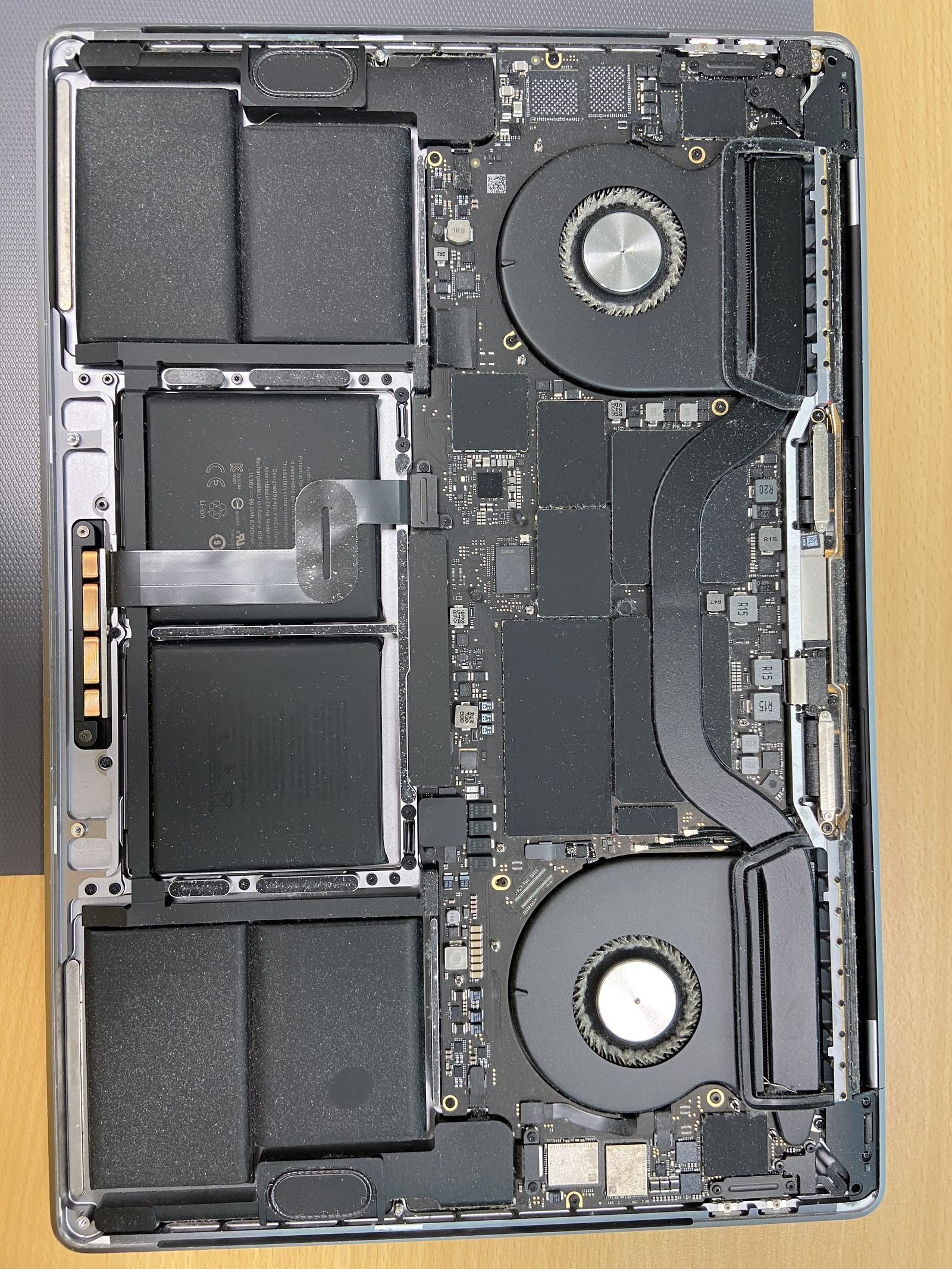
How to Clean a MacBook Pro Keyboard?
Quick answer
The golden rule: liquid on the cloth, never on the keys
The single most important thing to understand before you start: a MacBook keyboard sits directly above the logic board. There is no waterproof tray underneath. Any liquid that slips between the keys can wick down into the electronics and cause corrosion days or weeks later. So the rule we drill into every customer is simple - put your cleaning fluid on the cloth, then wipe. Never spray, drip, or pour anything onto the keys themselves.
Done carefully, cleaning your keyboard is a five-minute job you can do at home. Done carelessly, it's how a lot of the water-damage repairs on our bench start.
What you'll need
- A soft, lint-free microfiber cloth - the same kind you'd use on the screen
- 70% isopropyl alcohol - it cuts grease and evaporates fast, leaving no water behind
- A can of compressed air - for crumbs and dust between the keys
- Cotton swabs - for getting around individual sticky keys
- A soft-bristled brush (optional) - to loosen stubborn debris before blowing it out
Skip the household glass cleaner, bleach, and anything abrasive - they can strip the keycap coating and damage the anti-reflective surfaces nearby.
Surface cleaning - the weekly wipe-down
For routine cleaning, shut the MacBook down and unplug it first. Apply a small amount of 70% isopropyl alcohol to your microfiber cloth - it should be barely damp, never wet - and wipe the tops of the keys and the surrounding aluminium. Alcohol is better than water here because it dries almost instantly and won't pool between the keys. Finish with a dry corner of the cloth.
Crumbs and dust - compressed air at Apple's 75° angle
Crumbs, dust, and hair work their way under the keycaps and are the most common cause of keys that feel gritty or stop responding. Apple's own recommended method is precise:
- Hold the MacBook at roughly a 75° angle from horizontal (not fully vertical)
- Spray compressed air across the keyboard in a left-to-right sweeping motion, working row by row
- Rotate the MacBook to its right side and repeat the left-to-right sweep, then turn it to the left side and do it once more
The angle matters - it lets gravity carry the loosened debris out and away rather than pushing it deeper under the keys. Keep the straw a couple of centimetres back and use short bursts so you don't blast moisture from the can onto the board.
Sticky keys - spot-cleaning without flooding
A single sticky key is usually dried juice, coffee, or grease around the keycap. Lightly moisten a cotton swab with 70% isopropyl alcohol and gently work it around the edges and corners of the key. Don't soak it - a damp swab is enough. Let it dry fully before you power back on and test the key. If it still sticks after cleaning, the mechanism underneath may be damaged rather than dirty.
Butterfly keyboards (2016-2019) - why they're different
If you have a MacBook Pro or 12-inch MacBook from 2016 to 2019, it almost certainly has Apple's "butterfly" keyboard. These have a famously shallow, low-travel mechanism with extremely tight tolerances - and they're notorious for failing when even a tiny speck of dust gets under a key. The result is keys that stick, repeat letters, or stop registering entirely.
The problem with butterfly keyboards is that surface cleaning often can't reach the dust causing the fault. The keycaps are fragile clips that snap and crack easily if you try to pry them off at home, and the butterfly mechanism beneath is delicate. A bit of compressed air at the 75° angle is the only home fix worth attempting - and if that doesn't clear it, the keyboard genuinely needs professional service rather than DIY disassembly. Apple acknowledged the design flaw with a service programme for these models, and the design was retired in favour of the more reliable Magic Keyboard from 2020 onward.
Spilled something? Stop using it immediately
This is the one situation where speed beats cleaning. If you spill water, coffee, juice, or anything else on the keyboard:
- Shut it down at once - hold the power button until it switches off; don't wait for a normal shutdown
- Unplug the charger and any accessories
- Do not turn it back on to "check if it still works" - that's when short circuits happen
- Turn it upside down in a tent shape to let liquid drain away from the board
- Don't use rice or a hairdryer - they don't reach internal moisture and heat can warp components
Sugary or sticky drinks are the most dangerous because they leave a conductive, corrosive residue even after the liquid dries. The safest move is to bring it straight to us for MacBook water damage repair in Dubai (from AED 700) so the internals can be opened, cleaned, and dried properly before any corrosion sets in. We offer free pickup and a free diagnosis.
When a key or the whole keyboard needs replacing
Cleaning fixes dirt - it can't fix a broken mechanism. Bring the MacBook in if you notice:
- A key that stays dead after a thorough clean and full dry
- A keycap that has popped off and won't clip back securely
- Keys that repeat characters, feel mushy, or register a different letter
- Liquid that got inside - even if most keys still type
On most MacBooks individual keycaps and the keyboard assembly are replaceable. Our MacBook keyboard repair in Dubai starts from AED 350, and if the fault is borderline we'll run a free full diagnostic first so you only pay for what actually needs doing. Sticky issues that turn out to be the trackpad rather than the keyboard fall under our trackpad repair instead.
Keep it clean - prevention beats cleaning
- Wash and dry your hands before long typing sessions to cut down on grease
- Don't eat or drink directly over the keyboard - crumbs and splashes are the two biggest culprits
- Give it a quick compressed-air blow-out every few weeks, especially in dusty Dubai conditions
- Close the lid when the MacBook isn't in use so dust doesn't settle on the keys
If your MacBook also feels sluggish while you're in there cleaning it up, our guide on fixing a slow MacBook walks through the 10-minute checklist we use at the bench.
Frequently asked questions
- It's safer to use 70% isopropyl alcohol on a microfiber cloth instead. Alcohol evaporates almost instantly and won't pool between the keys, whereas water can wick down to the logic board. Whichever you use, put it on the cloth - never spray or drip liquid onto the keys.
- About 75 degrees from horizontal - Apple's recommended angle. Spray in a left-to-right sweep across each row, then rotate the MacBook to the right side and repeat, and again on the left side. The angle lets gravity carry crumbs out instead of pushing them deeper under the keys.
- Lightly moisten a cotton swab with 70% isopropyl alcohol and work it around the edges of the key - don't soak it. Let it dry fully, then test the key. If it still sticks after cleaning and drying, the mechanism is likely damaged and needs professional repair from AED 350.
- Apple's butterfly mechanism has very shallow travel and extremely tight tolerances, so even a single speck of dust under a key can make it stick, repeat, or stop working. Surface cleaning often can't reach the trapped dust, and the fragile keycaps crack if pried off at home, so these usually need professional service.
- We don't recommend it at home, especially on butterfly keyboards (2016-2019), where the keycaps are delicate clips that crack and the mechanism beneath is easily bent. Use compressed air at a 75° angle instead. If debris is trapped under a key, bring it in for safe disassembly.
- Shut it down immediately by holding the power button, unplug the charger, and do not turn it back on. Turn the MacBook upside down in a tent shape to drain liquid away from the board, skip the rice and hairdryer, and bring it in for water damage repair. Sugary drinks are especially urgent because they leave corrosive residue.
- MacBook keyboard repair starts from AED 350, covering individual keycaps or a full keyboard assembly. We run a free diagnostic first, offer free pickup across Dubai, and back the work with a 90-day warranty. Water damage repair, if a spill got inside, starts from AED 700.
- A quick compressed-air blow-out every few weeks is ideal, especially in dusty Dubai conditions, plus a light isopropyl wipe-down of the keycaps weekly if you eat or drink near it. Keeping the lid closed when not in use and washing your hands beforehand cuts down on grease and crumbs.
Related on MacBook Repair Dubai
About the author
Usman is a senior macbook technician at MacBook Repair Dubai, Dubai's longest-running Apple-only repair workshop (since 2004). Personally signs the QC checklist on every job leaving the bench.