
How-to · macOS
How to Reset a MacBook (Restart, SMC, NVRAM & Factory Reset)
'Reset' can mean five different things on a Mac - from a 10-second restart to a full factory wipe. Here's exactly which one you need, and how Apple Silicon and Intel differ.
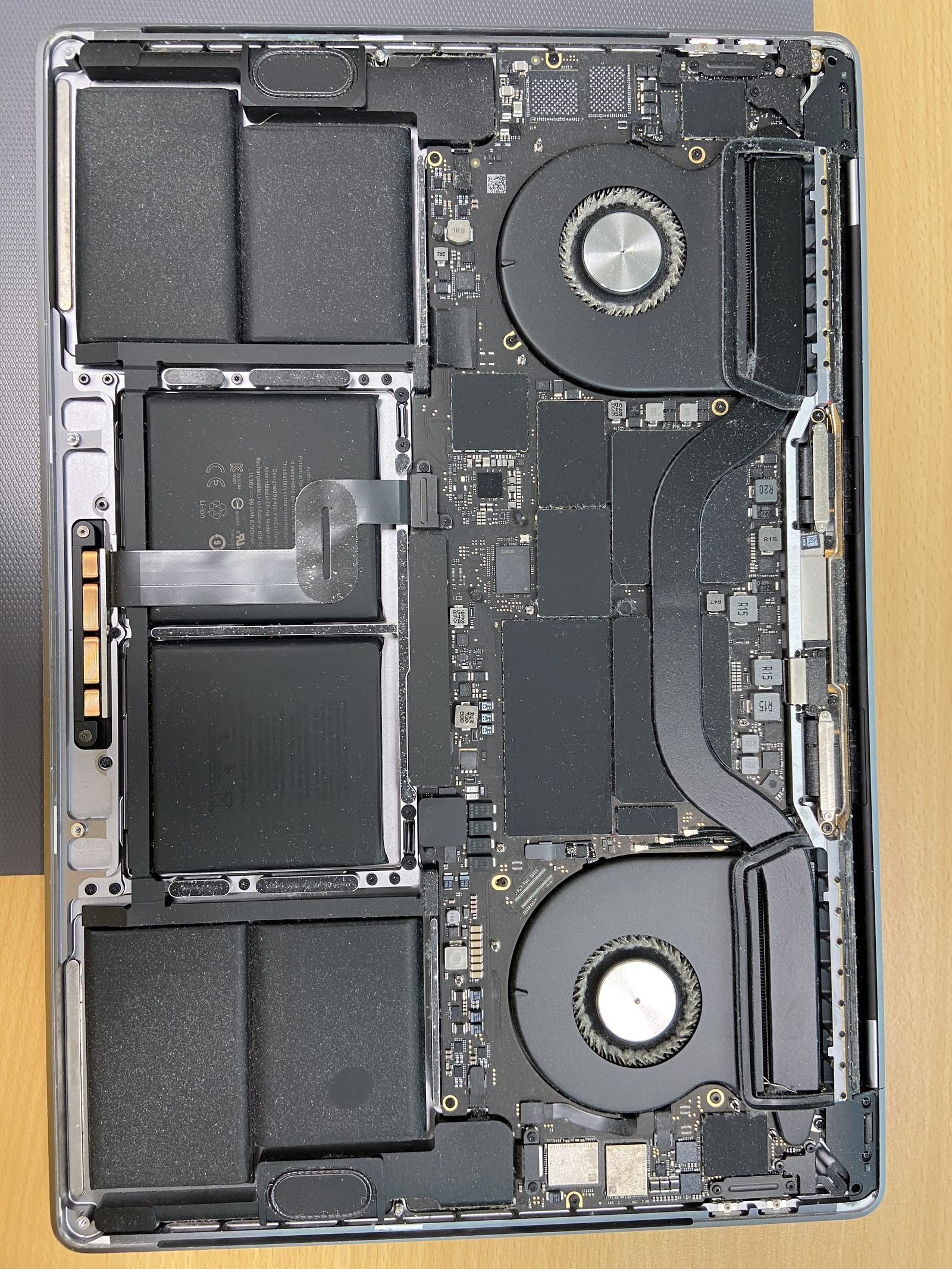
How to Reset a MacBook (Restart, SMC, NVRAM & Factory Reset)?
Quick answer
First, decide which "reset" you actually need
People say "reset my MacBook" to mean very different things. Picking the wrong one wastes time or, worse, erases data you wanted to keep. There are five levels, from gentlest to most drastic:
- Soft restart - clears temporary glitches, keeps all your data.
- SMC reset (Intel Macs only) - fixes power, battery, fan and sleep issues.
- NVRAM/PRAM reset (Intel Macs only) - fixes volume, display resolution and startup-disk settings.
- Factory reset via Erase All Content and Settings - wipes everything, macOS Ventura and later.
- Recovery-mode erase + reinstall - the classic full wipe for older Macs.
Important: this guide is about resetting the Mac. If you've forgotten your login password and just need back in, you don't need any of this - see how to recover a MacBook password instead.
1. Soft restart - the fix for most glitches
Before anything dramatic, restart. A surprising number of problems - a frozen app, Wi-Fi that won't connect, an external display that won't wake - vanish after a clean reboot that flushes memory and reloads system services.
- Normal restart: Apple menu → Restart. Untick "Reopen windows when logging back in" for a truly fresh start.
- If the Mac is frozen: hold the power button for about 10 seconds until the screen goes black, wait a moment, then press it again to power on.
If the Mac won't power on at all, restarting isn't the issue - work through our MacBook not turning on fix guide first.
2. SMC reset (Intel Macs only)
The System Management Controller handles power, battery charging, fans, sleep/wake and the keyboard backlight. If your Intel MacBook won't sleep, the fans run flat-out, the battery won't charge, or the power button feels unresponsive, an SMC reset often clears it.
- Intel MacBook with the T2 chip or non-removable battery: shut down, then hold Control + Option (left side) + Shift (right side) for 7 seconds. Keep holding and add the power button for another 7 seconds. Release all, wait, then power on.
- Older Intel MacBook (removable battery): shut down, remove the battery, hold the power button for 5 seconds, reinsert and power on.
Apple Silicon (M1, M2, M3, M4, M5): there is no SMC to reset. Those functions are built into the chip, and a normal restart accomplishes the same thing. If a tech tells you to "reset the SMC" on an M-series Mac, they're working from outdated steps.
3. NVRAM/PRAM reset (Intel Macs only)
NVRAM (called PRAM on much older Macs) stores small settings that load before macOS: sound volume, display resolution, time zone, and which disk to start from. Garbled startup behaviour - wrong volume on boot, a question-mark folder, the wrong startup disk - is a classic NVRAM symptom.
- Shut the Intel Mac down completely.
- Power on and immediately hold Option + Command + P + R.
- Hold for about 20 seconds. On older Macs you'll hear a second startup chime; on T2 Macs the Apple logo appears and disappears a second time. Then release.
Apple Silicon does this automatically. M-series Macs run an NVRAM check and self-repair on every boot, so there is no key combination to learn. Just restart.
4. Factory reset: Erase All Content and Settings (macOS Ventura and later)
This is the modern, Apple-recommended way to wipe a Mac before selling, trading in, or giving it away - and the fastest way to a clean slate. It's available on macOS Ventura, Sonoma, Sequoia and newer, on both Apple Silicon and T2-equipped Intel Macs. It signs you out of Apple ID, removes Touch ID and Apple Wallet, turns off Find My and Activation Lock, and erases all data and settings in one guided flow - without reinstalling macOS.
- Back up first (see the Time Machine section below).
- Open System Settings → General → Transfer or Reset → Erase All Content and Settings.
- Enter your administrator password to authenticate.
- Review what will be removed, then click Continue and let it finish. The Mac restarts to the Setup Assistant "Hello" screen.
If you're keeping the Mac, just walk through Setup Assistant again. If you're handing it on, leave it at the "Hello" screen so the next owner sets up their own account.
5. The older way: erase + reinstall in Recovery mode
If your Mac runs macOS Monterey or earlier, "Erase All Content and Settings" may not be available, so you erase the disk and reinstall macOS manually. The steps differ by chip:
- Apple Silicon: shut down, then press and hold the power button until you see "Loading startup options". Click Options → Continue to enter Recovery.
- Intel: shut down, then power on while holding Command + R until the Apple logo or spinning globe appears.
- In Recovery, open Disk Utility, select Macintosh HD, click Erase, and choose APFS as the format. Quit Disk Utility.
- Back in the main menu, choose Reinstall macOS and follow the prompts.
If Recovery won't load, the disk won't erase, or the reinstall fails partway, that points to a software or drive fault rather than user error. Our macOS reinstall service in Dubai gets it back to a clean, working state with the correct macOS version for your model.
Always back up before a factory reset
A factory reset is permanent - there is no Undo and no Trash to recover from. Before you erase anything, make a Time Machine backup:
- Connect an external drive (USB or Thunderbolt).
- System Settings → General → Time Machine → Add Backup Disk, pick the drive, and wait for the first full backup to complete.
- Alternatively, copy critical files to iCloud Drive or another cloud service, and confirm they've finished syncing before you wipe.
If you've already erased the Mac without a backup, stop using it immediately - continued writes overwrite the old data. Our MacBook data recovery service can often retrieve files from a freshly erased drive, but only if nothing new has been written over them.
Apple Silicon vs Intel: what's different
The chip inside your Mac changes which resets even exist. Quick reference:
- SMC reset: Intel only. Apple Silicon handles it via a normal restart.
- NVRAM/PRAM reset: Intel only. Apple Silicon resets and verifies NVRAM automatically on every boot.
- Entering Recovery: Apple Silicon - hold the power button. Intel - hold Command + R.
- Erase All Content and Settings: works on both, as long as the Mac runs macOS Ventura or later (Intel needs the T2 security chip).
Still stuck? Get a free diagnosis
If a reset doesn't fix the underlying problem - the Mac still freezes, won't boot, or misbehaves after a clean reinstall - the cause is usually hardware, not software. Book a full MacBook diagnostic in Dubai or just contact us. We've repaired Apple devices since 2004, offer free pickup and free diagnosis, and back every job with a 90-day warranty. For broader repairs, see our main MacBook repair Dubai page.
Frequently asked questions
- It depends which reset. A soft restart and SMC or NVRAM reset keep all your data. A factory reset - Erase All Content and Settings, or erasing the disk in Recovery mode - permanently deletes everything, so always make a Time Machine backup first.
- Back up first, then go to System Settings → General → Transfer or Reset → Erase All Content and Settings. Enter your admin password, review what will be removed, and click Continue. The Mac signs out of your Apple ID, wipes your data, and restarts to the Setup Assistant.
- No. Apple Silicon Macs (M1, M2, M3, M4, M5) have no separate System Management Controller, so there is nothing to reset. A normal restart performs the equivalent. SMC reset steps apply only to Intel Macs.
- Only Intel Macs have a manual NVRAM/PRAM reset: shut down, power on, and immediately hold Option + Command + P + R for about 20 seconds. Apple Silicon Macs reset and verify NVRAM automatically on every boot, so you just restart.
- On Apple Silicon, shut down then hold the power button until 'Loading startup options' appears, click Options, and Continue. On Intel, shut down then power on holding Command + R until the Apple logo appears. From there use Disk Utility to erase and Reinstall macOS.
- Yes, especially if you're selling or giving the Mac away. Sign out of iCloud, turn off Find My, and sign out of iMessage so Activation Lock is released. Erase All Content and Settings handles this for you, but doing it manually first avoids a locked Mac for the next owner.
- No. Resetting the Mac (restart, SMC, NVRAM, factory wipe) is separate from a forgotten login password. If you just can't log in, follow our guide on how to recover a MacBook password rather than erasing your data.
- A Recovery screen that won't appear, a disk that won't erase, or a reinstall that fails usually points to a software corruption or a failing drive. Bring it in for a free diagnosis - our macOS reinstall service restores a clean, working system with the correct macOS for your model.
Related on MacBook Repair Dubai
About the author
Usman is a senior macbook technician at MacBook Repair Dubai, Dubai's longest-running Apple-only repair workshop (since 2004). Personally signs the QC checklist on every job leaving the bench.